The connection settings are saved to a hidden RDP file in the Documents folder by default. So, you can also open this file with a text editor and directly edit the values there to set up the multi monitor remote connection. Here are the steps to do so:
- Navigate to the Documents folder and make sure Show hidden items is enabled.
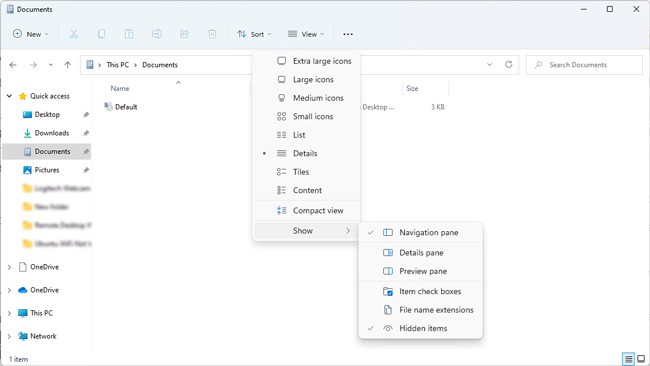
- Open the RDP file with a text editor, add the following line, and then save the file:
use multimon:i:1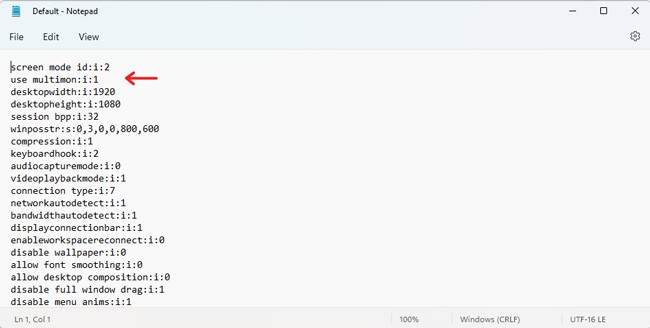
- If the display order is incorrect, execute the
mstsc /lcommand in CMD to view all the monitors on your system. They’ll be listed as 0, 1, 2, and so on.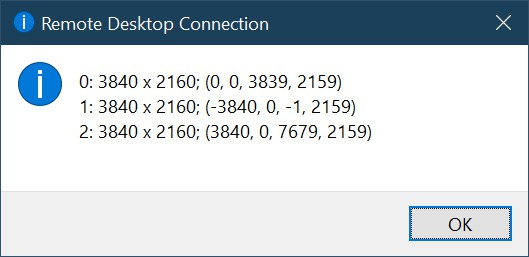
- Next, you can adjust the values for the
selectedmonitorsline to rearrange the monitors in the correct order. - For instance, if you have 3 monitors listed as
selectedmonitors:s:0,1,2, you could edit it toselectedmonitors:s:1,2,0to change the display order, orselectedmonitors:s:0,2to use 2 of 3 monitors. - Remember to save the settings once you figure out the correct order.

No comments:
Post a Comment